
If your aircraft has an Automatic Dependent Surveillance — Broadcast (ADS-B) receiver, you will be able to receive NEXRAD, METARs, TAFs, and other textual data as well as aircraft location. Refer to the ADS-B/GPS Compatibility List for Aero App’s compatibility with non-proprietary ADS-B and GPS receivers.
Connecting ADS-B receiver to iOS Devices
via Wi-Fi
- Open the iOS device settings.
- Tap on Wi-Fi.
- Search for the ADS-B receiver in the NETWORKS section.
- Select the ADS-B receiver to establish the connection.
- Verify that Aero App is receiving the ADS-B information. Read the “Viewing ADS-B Battery, Status, and Details” instructions below.
via Bluetooth (Same for connecting GPS receivers with Standard Bluetooth Connection)
- Open the iOS device settings.
- Tap on Bluetooth.
- Search for the ADS-B receiver in the OTHER DEVICES section.
- Select the ADS-B receiver to establish the connection.
- Verify that Aero App is receiving the ADS-B information. Read the “Viewing ADS-B Battery, Status, and Details” instructions below.
Connecting ADS-B receiver to Android Devices
via Wi-Fi
- Open the Android device settings.
- Go to Connections.
- Tap on Wi-Fi.
- Search for the ADS-B receiver in the Available networks section.
- Select the ADS-B receiver to establish a connection.
- Verify that Aero App is receiving the ADS-B information. Read the “Viewing ADS-B Battery, Status, and Details” instructions below.
via Bluetooth (Same for connecting GPS receivers with Standard Bluetooth Connection)
- Open the Android device settings.
- Go to Connections.
- Tap on Bluetooth.
- Search for the ADS-B receiver in the Available devices section.
- Select the ADS-B receiver to establish a connection.
- Verify that Aero App is receiving the ADS-B information. Read the “Viewing ADS-B Battery, Status, and Details” instructions below.
Viewing ADS-B Battery, Status, and Details
- Tap Map on the Main Menu.
- Tap the ADS-B button located at the upper-right corner of the map.
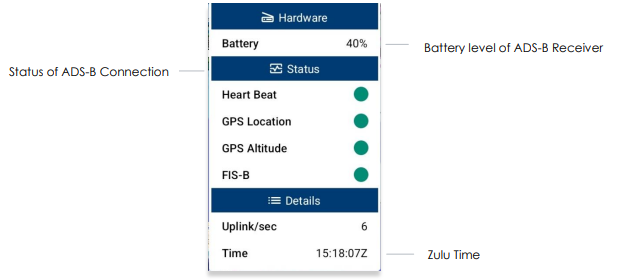
The green status indicates that the ADS-B connection is established to receive
the data for Heart Beat, GPS Location, GPS Altitude, and FIS-B Data. If the status
displays red, then there is no connection.
- Battery displays the battery level of the ADS-B receiver.
- Heart Beat indicates that the ADS-B is receiving data.
- GPS Location indicates the connection status of the ownship’s GPS location.
- GPS Altitude indicates the connection status of the ownship’s GPS altitude.
- FIS-B indicates the connection status in receiving weather from FIS-B towers.
- Uplink/sec indicates the occurrence of the ADS-B data messages Aero App receives from ADS-B towers during the previous second.
- Time displays the Zulu time.
The ADS-B button on the Map will display a green line above the text when an ADS-B receiver is connected successfully.

NOTE: If the user’s ADS-B is disconnected, the ADS-B button on the Map
will not have the green line displayed. If the connection is still not established, then try to reboot Aero App.